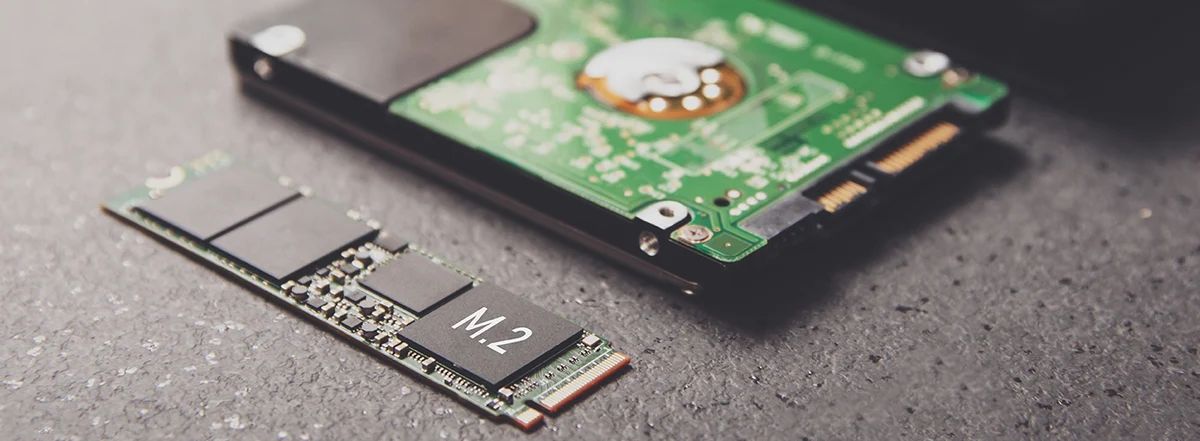
HDD to SSD: The Best Upgrade
Why do it? Replacing an old mechanical hard drive (HDD) with a Solid State Drive (SSD) can make a 10-year-old computer feel faster than it was on day one.
The DIY Secret: You don’t have to lose your files. You can “clone” your old drive to the new one using free software like Macrium Reflect or Clonezilla.
If your computer feels slow to boot, laggy when opening apps, or generally unresponsive, chances are your hard disk drive (HDD) is holding you back. For years, HDDs have been the standard storage solution, offering ample space at a low cost. However, their mechanical nature means slower data access and transfer speeds. Enter the solid-state drive (SSD)—a game-changing upgrade that can transform your PC’s performance overnight.
Why Upgrade from HDD to SSD?
Unlike HDDs, which rely on spinning disks and moving read/write heads, SSDs use flash memory to store data. This fundamental difference results in lightning-fast access speeds, near-instant boot times, and quicker file transfers. The benefits of upgrading to an SSD include:
- Faster Boot and Load Times: Your PC can start up in seconds instead of minutes. Applications and games load swiftly without frustrating delays.
- Improved Overall Performance: With faster data access, multitasking becomes smoother and system responsiveness improves dramatically.
- Durability and Reliability: SSDs have no moving parts, making them more resistant to physical shock and less prone to mechanical failure.
- Lower Power Consumption: SSDs consume less power, which can extend battery life on laptops.
The Upgrade Process: Simple and Worth It
Upgrading from an HDD to an SSD is easier than you might think. Here’s a quick overview:
- Choose the Right SSD: Consider capacity, form factor (2.5-inch SATA vs. M.2 NVMe), and budget.
- Backup Your Data: Safeguard your important files before making any changes.
- Clone or Clean Install: You can clone your existing HDD to the SSD for a seamless transition or opt for a fresh OS install for a clean slate.
- Install the SSD: Physically replace the HDD with your new SSD, or add it alongside if your system supports multiple drives.
- Optimize Your System: Enable features like TRIM and update your drivers to maximize SSD lifespan and performance.
The Payoff: A Snappy, Reliable PC
Switching from an HDD to an SSD is arguably the best single upgrade you can make to breathe new life into an aging computer. It offers a noticeable boost in speed and reliability that feels like getting a brand-new machine.
If you’re ready for a faster, more efficient computing experience, upgrading your HDD to an SSD should be at the top of your to-do list. Your patience will be rewarded with a PC that responds instantly and keeps up with your demands effortlessly.